










If you’re an author who’s self-published, you’ve been inundated with various accounts to create. Of them all, your Amazon author central account is one that you’ll need to understand and master if you want to make sure you’re appearing online and in search.
This is the place where you’ll manage your books, update any descriptions, and alter your author bio and appearance on Amazon’s live pages.
But knowing what to access from Amazon author central versus another Amazon location can get tricky. That’s why we’ve created a full and complete guide with screenshots, tutorials, and tips to make the most of it.
Here’s what we’ll cover for Amazon author central:
What is Amazon author central?
Amazon author central is a platform provided by Amazon for authors to manage their presence and profile on Amazon’s marketplace. It allows authors to create a personalized author page, which includes a bio, author photo, and links to their books.
It’s the place you login to manage the front-facing aspects of your author presence on Amazon.
Through Amazon author central, authors can also track book sales, access reviews, and update book details such as descriptions and editorial reviews. If you’re a self-published author on Amazon, this will be your bread and butter when it comes to updating anything for your books.
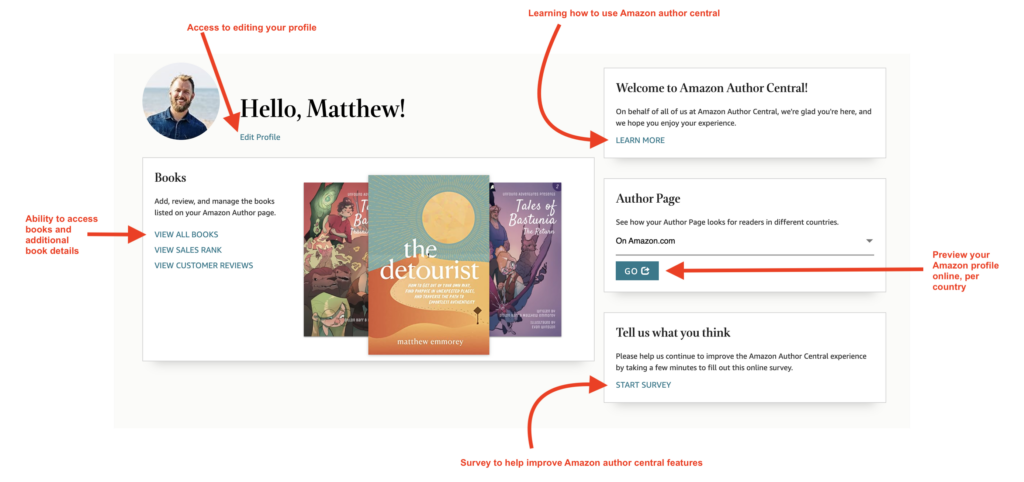
When you first login, you’ll see the homepage, which has a primary menu, along with profile details.

Amazon author central walkthrough & how-to for all sections
Each page you have access to on Amazon author central has a number of different things you can do on it. Let’s take a look at each page, what to update, and how it affects your Amazon author profile as it appears to others.
For the walkthrough today, we’ll be using Matthew Emmorey’s author account.
Home
The home page is what you’ll see when you log in. At the top, you’ll find the menu, just like on every page. Beneath that, however, the home page houses updates and notification Amazon wants you to see and know about:

They’ll be highlighted in a pale blue, with short headings and a sentence describing each. You have the option to either click a link to learn more about the updates or his the “X” to remove them. Overall, these updates help authors understand all their options when it comes to managing their accounts as well as navigating all Amazon author central has to offer.
Below that, you’ll see a secondary navigation hub that includes your profile image, name, link to edit your profile, book editing navigation, and on the right side, you’ll see options to learn about Amazon author central, view your page online across various countries (as others would see it), and take a survey.
Profile (editing author bio)
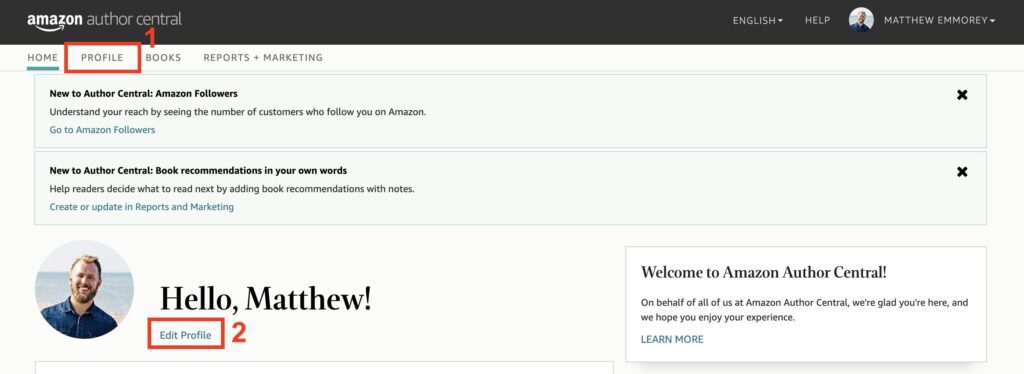
There are two ways you can access the editing options for your profile through Amazon author central. The first is from the primary navigation menu, under “PROFILE”, the second is from the homepage, beneath your name where the link reads “Edit Profile”.
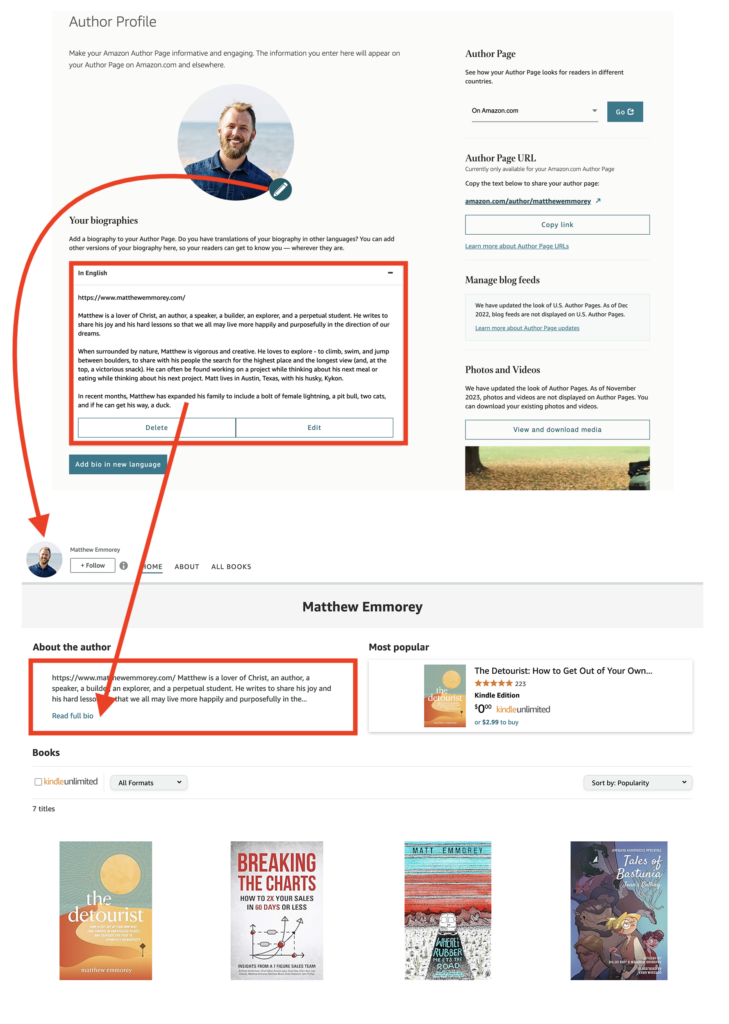
When you navigate to the profile page, you’ll have the options to update your photo and biography, as well as access the live link that will take you to the public profile page.
Here’s what the live page versus the editing page looks like and how what you edit will affect it:
Books (+ adding a book, editing details)
Your books page is where you’ll have access to every book you’ve claimed so far. If you don’t claim the books you have, they will not appear on your life Amazon profile. So make you claim them every time you upload and publish!
This page allows you to click into each individual book, and then you’ll see a page with all editions of your book, like the Kindle version, paperback, hardcopy, and audible version. Each version will have its own page to edit details.
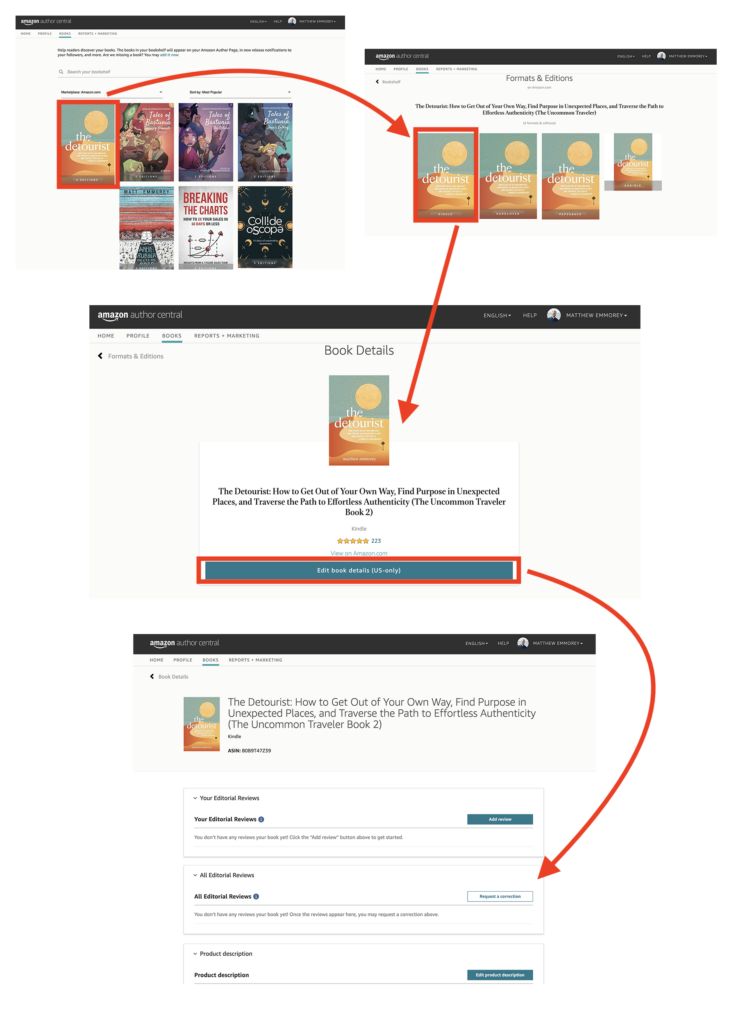
Click on any book you want in order to edit the book details, including the product description, from the author, from the inside flap, from the back cover, and an about the author section. The product description is what you want to pay the most attention to, however, because it will be the information that appears as the book’s description:
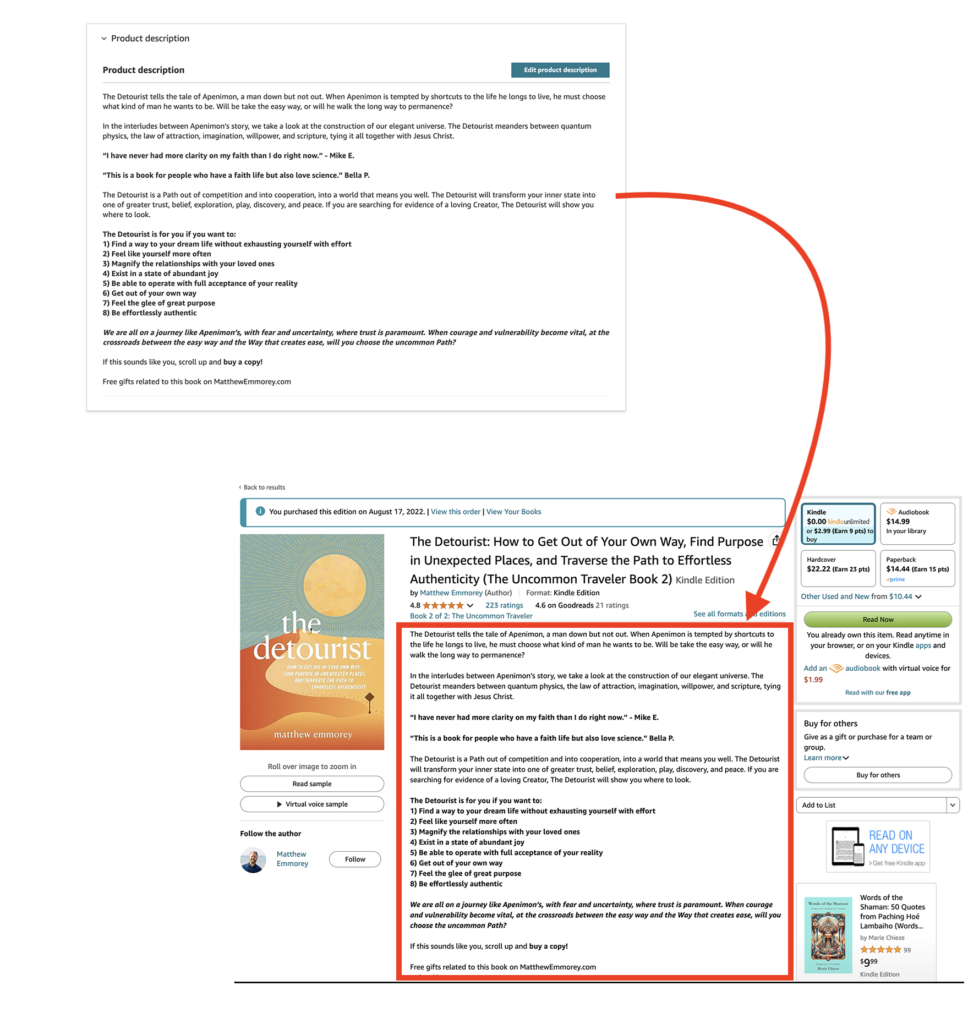
If you want to make the most of your book’s description, follow a few of these tips:
- Open with a compelling hook: Start with an attention-grabbing sentence or question that immediately draws readers in. Many authors use book endorsements or reviews here if you have them.
- Identify the genre: Clearly signal the genre so readers know what kind of story they are diving into (e.g., “a gripping mystery” or “an epic fantasy adventure”).
- Introduce the main character and conflict (if fiction): Give a brief overview of the protagonist and the central challenge or journey they face. If you write nonfiction, this would look like the primary challenges the reader is looking to address and overcome in their lives.
- Focus on high stakes: Highlight what’s at risk for the characters or reader, creating urgency and interest for readers.
- Keep it concise and focused: Stick to 2-3 short paragraphs, providing a snapshot of the story without overwhelming readers with details. Use various font types, like bolded or italicized, when necessary to call attention to important pieces, like the book reviews and numbered section in the example above.
- Use vivid, evocative language: Paint a picture of the book’s world and tone, using descriptive language to make the book come alive. This is an opportunity to give the reader a preview into your writing style, even with nonfiction.
- Mention comparable books or authors: If applicable, reference similar bestselling books or authors to help readers relate to your work (e.g., “perfect for fans of [Author/Title]”).
- Incorporate relevant keywords: Use genre and theme-specific keywords that readers are likely to search for, helping your book appear in search results.
- Highlight unique selling points: Point out what sets your book apart, whether it’s a plot twist, a unique setting, challenges that will be solved, or a strong polarization you’re addressing.
- Proofread and edit: Ensure the description is free of grammar mistakes, typos, and reads smoothly to reflect professionalism.
This is also the page in your Amazon author central account you’ll go to when you want to add a book. Scroll down beneath the books you have listed, and click “Add a book” to begin that process.
After you go there, follow these steps to add a book:
- Search for Your Book: In the search bar, enter your book title, author name, or ISBN. Amazon will search its catalog for your book.
- Select Your Book: Once your book appears in the search results, select it to claim it as yours. If your book is available in multiple formats (e.g., Kindle, paperback, hardcover), claim all formats to link them to your profile.
- Verification Process: After claiming your book, Amazon may verify the ownership. This process can take a few days if it’s a new addition or if there are multiple authors listed.
- Book Appears on Your Author Page: Once Amazon confirms the connection between you and the book, it will automatically appear on your author page, making it visible to your readers.
Reports & marketing
The last page to visit in your Amazon author central account is the Reports & Marketing page. This is where you’ll want to go to see how your books are actually performing both with the audience (for reviews) and on the Amazon store as a whole (with sales rank).
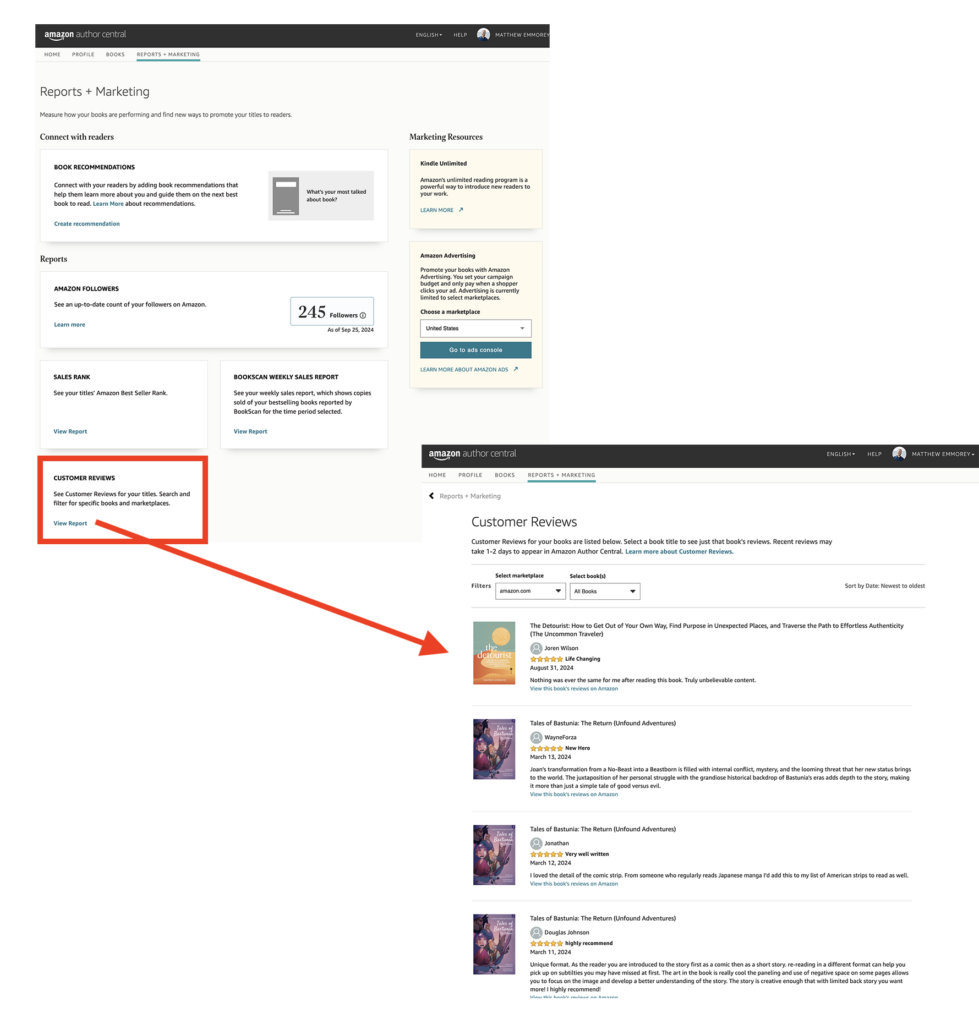
You can also use this page to access creating book recommendations for others to view, and access your Kindle Unlimited data, which is located in a different portal on Amazon. You can also go to the ads console from this page, which is also located in a separate location than your Amazon author central account.
From this page, there are various options to navigate to additional marketing reports and information, including:
- Book recommendations: This feature provides personalized book recommendations to Amazon customers based on their browsing and purchasing history. For authors, this section allows you to see how Amazon’s algorithm may recommend your books to readers. It’s a tool to help you understand how your books are being promoted and suggested to potential buyers, especially if they are interested in similar genres or titles.
- Amazon followers: The “Amazon Followers” section shows the number of customers who follow you as an author on Amazon. Followers receive notifications when you release new books or make updates to your author page, such as posting blog updates or other announcements. This is a useful tool for building an audience and engaging with readers directly, as it helps keep them informed about your work.
- Sales rank: The “Sales Rank” feature displays the ranking of your books relative to other titles on Amazon. Updated frequently, this number reflects how well your book is selling within its category or overall on the Amazon platform. A lower number indicates higher sales. This is a useful metric for tracking how your book performs over time and how changes in marketing efforts or promotions impact sales.
- Bookscan weekly sales report: This report shows actual print book sales data for your titles across major retailers in the U.S., excluding sales on Amazon. It’s provided by NPD BookScan and is updated weekly. It gives authors insight into how their physical books are performing in bookstores and other retail channels, helping you track your sales beyond Amazon’s own platform.
- Customer reviews: The “Customer Reviews” section provides an overview of all the reviews that customers have left for your books. This includes star ratings and written feedback, giving you insights into how readers are responding to your work. Monitoring this section can help you engage with feedback, spot trends in reader preferences, and even identify areas for improvement or marketing opportunities based on common themes in reviews.
Amazon author central FAQ:
How do I get to my Amazon author central page?
To access your Amazon author central page, you first need to sign up for an author central account at https://author.amazon.com. This can be different than your Amazon shopping account information—including a separate email and password.
Once registered, you will be prompted to claim your books by searching for your author name or book titles. After Amazon verifies your identity and ownership of the books, you can begin managing your author page. From your dashboard, you can personalize your page by adding an author bio, uploading a photo, and linking to your books.
Does Amazon author central cost money?
No, Amazon author central is a free service. It is provided by Amazon at no charge to all authors, whether traditionally published or self-published. This free platform helps authors take control of their profile and how their books are presented to potential buyers, making it an essential tool for book marketing on Amazon.
But of course, if you have books published through Amazon, they technically do get paid with their cut of your royalties. As far as creating and maintaining the account, there is no charge.
What information does Amazon need to confirm my Amazon author central account?
Amazon has to verify who you are before they can approve your account and connect it to your books. Otherwise, anyone could hop online and claim they’re the author of certain books.
What you’ll need to prove ownership of your books and to approve your account is:
- Account details: a verified email address
- Identity verification
- Published book information: you’ll have to claim the books you’ve written (that you uploaded via KDP)
- Author bio and photo
- Publisher or distributor details (if applicable)
How long does it take Amazon to approve author page?
Once you submit your request for an Amazon author central account and claim your books, the approval process usually takes about 3-7 business days. During this time, Amazon verifies the information provided, such as your connection to the books you are claiming and the accuracy of your author bio. Once approved, your author page will go live, and you can begin managing your profile.
What should I put in my Amazon author bio?
Your Amazon author bio should be a concise yet compelling introduction that highlights your background, expertise, and interests relevant to your writing. Mention key accomplishments, notable publications, awards, or professional experiences that might interest potential readers. Give them a look at not only the kinds of books you write, but details that confirm you writing those books is interesting, and makes them better.
You can also include personal details that make you relatable, such as hobbies or what inspires your writing. Keep the tone authentic and engaging, making sure to write for the audience who will be buying your books. Also, be sure to update your bio regularly as your career progresses.
Can I add books written under a pen name to my author central page?
Yes, you can add books written under a pen name to your author central profile. When claiming books, you’ll need to search for the titles or ISBNs associated with your pen name. Amazon may ask for verification if the name differs significantly from your main account name.
Can I manage books from different regions (Amazon US, UK, etc.) through author central?
There are separate Amazon author central accounts for different regions, such as the US, UK, Germany, and others. You will need to set up separate accounts for each region, but you can use the same login credentials. This allows you to manage and update your author profiles and book listings across various Amazon marketplaces.
How often is the Sales Rank on Amazon author central updated?
The Sales Rank is updated frequently throughout the day on Amazon author central. It provides a real-time snapshot of how well your book is selling compared to others in its category. Keep in mind that the ranking can fluctuate depending on short-term sales activity.
How do I link my blog or social media to my Amazon Author Page?
You can link your blog by adding an RSS feed in the “Profile” section of your author central account. For social media, you can include links to your profiles (e.g., Twitter, Instagram) in your bio to help readers connect with you outside of Amazon.
Can I see who is following me on Amazon?
While you cannot see the names of individual followers, you can see the total number of people who follow you as an author. Followers receive notifications when you release new books or update your profile, which can help you build a direct connection with your readers.
Can I respond to customer reviews on Amazon author central?
No, authors cannot respond directly to customer reviews on Amazon author central. But you can read and monitor reviews to gain feedback and insights. If you encounter inappropriate or offensive reviews, you can report them for Amazon to review.
Amazon author central is a place all self-published authors should know how to manage in order to maximize your online presence. Without it, you might have books without a claimed author, lose out on search traffic, and appear less professional online.