












As an author, I know how crucial it is to make a strong first impression—especially online. When potential readers browse Amazon, your book description is often their first interaction with your work. That’s why I was thrilled to discover a game-changing technique: using HTML to enhance my Amazon book description.
In this post, I’ll walk you through how I transformed my plain text description into a visually appealing, reader-friendly format using simple HTML tags. No coding experience required! Self-Publishing School provides an easy-to-use tool that helped me format my description effortlessly.
By adding bold headings, bullet points, and strategic line breaks, I noticed a significant increase in my book’s visibility and sales. If you’re ready to make your book stand out on Amazon, let’s dive into these simple yet effective formatting techniques.
Here’s what we’ll cover about how to write Amazon book descriptions:
Book Outline Generator
Choose your Fiction or Nonfiction book type below to get your free chapter by chapter outline!
Book Outline Generator
Enter your details below and get your pre-formatted outline in your inbox and start writing today!
CONGRATULATIONS
Thanks for submitting! Check your email for your book outline template.
In the meantime, check out our Book Outline Challenge.
Why use HTML in your book description?
Having an eye-catching book description is critical to marketing your book. After all, why would your potential buyers read your tantalizing book description and click “buy” if it’s ugly to look at? No different than designing your book cover, take time to pay attention to aesthetics.
By adding some code here and there, we can craft your Amazon book description to catch the attention of your audience and improve conversion rates.
As you can see, there is a clear difference between a well-structured book description using basic HTML and a book description that just uses plain text:
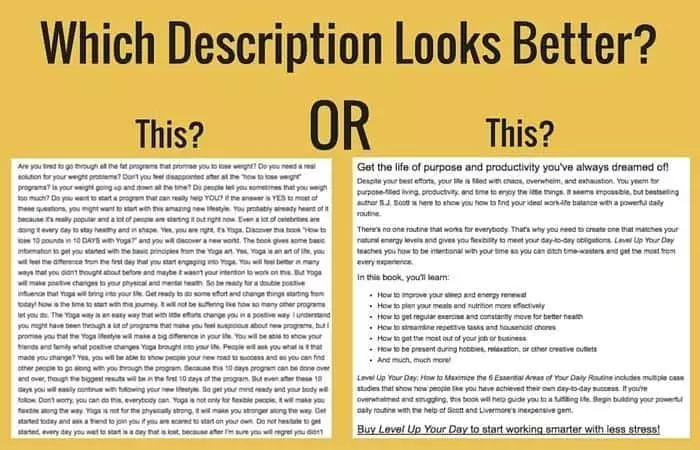
It isn’t as simple as writing it in a Word document then copying and pasting it into Amazon. Nope. That well-formatted beauty requires a little HTML-love in the text editor.
I’m going to show you exactly how you can tap into this, even if you know nothing about HTML or CSS. I’ll even introduce you to a free book description tool that will help you build beautiful, eye-catching summaries so that your book will stand out and get even more customers.
If you don’t want to mess with doing this yourself and would like Self-Publishing School to do it for you, book a call with our team and learn how we can help you through this entire process of publishing on Amazon.
Amazon book description tips
Lucky for us, we can use special snippets of code in our Amazon listings to access their font styles. All you need to do is type the right things around the sentences in your product description to make the words stand out and look great.
However, there’s a limit to what we can do. Even though we can use HTML, it isn’t like eBay where you can make flashy banners, pretty tables and style your product description with your web design kung-fu. There are restrictions on what we can and can’t do.
Let’s look at Amazon’s allowed HTML tags:
| HTML Tag | Description |
|---|---|
<b> | Formats enclosed text as bold. |
<br> | Creates a line break. |
<em> | Emphasizes the enclosed text; generally formatted as italic. |
<font> | Determines the appearance of the enclosed text. |
<h1> to <h6> | Formats enclosed text as a section heading: <h1> (largest) through <h6> (smallest). |
<hr> | Creates a horizontal “rule” or line. Often used to divide sections of text. |
<i> | Formats enclosed text as italic. |
<li> | Identifies an item in an ordered (numbered) or unordered (bulleted) list. |
<ol> | Creates a numbered list from enclosed items, each of which is identified by a <li> tag. |
<p> | Defines a paragraph of text with the first line indented; creates a line break at the end of the enclosed text. |
<pre> | Defines preformatted text. |
<strong> | Formats enclosed text as bold. See also: <b>. |
<u> | Formats enclosed text as underlined. |
<ul> | Creates a bulleted list from enclosed items, each of which is identified by a <li> tag. |
Don’t worry if you don’t know what all that means. I’ll show you.
To get your words to do the above, all you need to do is sandwich your sentence or words with the <fill in the code> above and end your sentence or word with </fill in the code>.
So, for instance, if you wanted to add a bit of code to the sentence, “My book is the best thing you’ve ever read,” you would type into the editor:
<fill in the code>My book is the best thing you’ve ever read.</fill in the code>
(Don’t write “fill in the code”—instead, use the cheat sheet above to see what letters will make the change you’re seeking.)
HTML examples for each tag
Now that you know how to wrap a tag around a sentence and which HTML tag you can use, let’s go through each one, apply it and see how it will look on the U.S. Amazon market.
Header Font Size
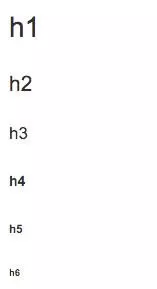
To get the words to be larger, you’ll need to use the Header Tags which are <h1>, <h2>, <h3>, <h4>, <h5> and <h6>. The H1 tag is the largest; H6 is the smallest.
Let’s see what they look like when wrapped around a word:
Bold
To make a sentence or word bold, all you need to do is wrap that word or sentence with <b></b>
Like this: Self-Publishing School is <b>amazing</b>.

Italics
To italicize a word, you can use either <i> or <em>.
Like this: Self-Publishing School is <i>amazing</i>.

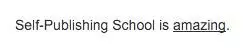
Underline
Underline uses <u></u>.
Like this: Self-Publishing School is <u>amazing</u>.
Horizontal lines
If you want to separate some text with a horizontal line (also called a line break), all you have to do is add <hr> and it will look like this:

Lists
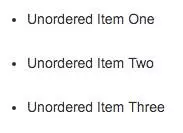
There are two types of lists: ordered lists and unordered lists. Ordered lists are numbered 1, 2, 3, etc. Unordered lists use bullet points.
Unordered are denoted at the beginning using <ul> and their structure looks like this:
<ul>
<li>Unordered Item One</li>
<li>Unordered Item Two</li>
<li>Unordered Item Three</li>
</ul>
Ordered Lists are denoted by the <ol> and their structure looks like this:
<ol>
<li>Ordered Item One</li>
<li>Ordered Item Two</li>
<li>Ordered Item Three</li>
</ol>

HTML tags you can’t use
So, what can’t you do in your book’s HTML description?
Well, you can’t do anything with images, like you can with normal HTML. You can’t insert images into your Amazon book description, nor set a background image. But who would want to do that? That’s what your book cover is for.
Anyone familiar with HTML will also know its cousin, CSS. You can’t use CSS with a Kindle description. So no fancy new fonts, font colors or CSS styles for any Kindle-specific summary you’re crafting.
Quick note on special characters
Though it isn’t necessary, you can use trademark and copyright symbols in your Amazon book description by using the following code:
| Special character | Code |
| Copyright symbol © | © |
| Trademark symbol ™ | ™ |
| Registered trademark symbol ® | ® |
Free Amazon book description generator tool
Hand-coding your own book description can be tedious. That’s why I designed a special free software that lets you see in real time what your description will look like. It’s called the Amazon Book Description Generator.
Just type in or copy and paste your Amazon book description, and with a few clicks, you can make it look the way you want it.
Once you’ve gotten it the way you like, just click “Get My Code” button and it will automatically create the HTML code you need for Amazon.
Then take that code, go to the KDP bookshelf and update your book’s description.
Examples of well-formatted book descriptions
To get your creative juices flowing, here are some examples of other books that have used Amazon book description formatting on their product page and taken it to the next level:
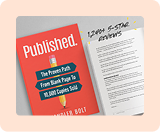
- Chandler Bolt’s “Published.”: It’s clean, and effectively uses the “bold” feature to highlight the most important words. That way, those who skim the description will immediately see the parts that Chandler wants them to see.
- Patrick King’s “Conversation Tactics”: This is one of the most effective uses of underlining as well as bullet points to neatly organize information. Patrick rocked his final sentence, the call to action. It leaves a strong lasting impression—and how can you NOT see it?
- Steve Scott’s “Email Marketing Blueprint”: Here’s another well-laid-out description that highlights the right spots and makes it easy on the eyes. My favorite part about his Amazon book description is the first paragraph, which shows up even before the customer clicks “read more.” Steve has made it so that his most eye-catching hook is featured right smack dab at the top of his sales page. Nice move.
Get our feedback on your description
Now that you know what is allowed by Amazon, how to code HTML for book descriptions and have a cool free tool that will do it for you, it’s time you get started on creating your Amazon book descriptions.
Remember, making a well-formatted Amazon book description will not only make your product listing more professional, it’ll be sure to hook your potential readers.
So get started now! Use the free tool in this article to bypass the hassle of using HTML code and make a gorgeous Amazon book description today.
If you want more help with the process of self-publishing on Amazon, book a call with a Self-Publishing School team member.
Book Outline Generator
Choose your Fiction or Nonfiction book type below to get your free chapter by chapter outline!
Book Outline Generator
Enter your details below and get your pre-formatted outline in your inbox and start writing today!
CONGRATULATIONS
Thanks for submitting! Check your email for your book outline template.
In the meantime, check out our Book Outline Challenge.