









Did you create your book’s draft in Google Docs? Are you wondering if you can format your book in the same software? The good news is, yes, you can, but there are some important points to consider before using the software for something other than writing.
Below, we’ll consider how a book template Google Docs works, the benefits, and if it’s a good fit for your book.
What you’ll learn:
Book Outline Generator
Choose your Fiction or Nonfiction book type below to get your free chapter by chapter outline!
Book Outline Generator
Enter your details below and get your pre-formatted outline in your inbox and start writing today!
CONGRATULATIONS
Thanks for submitting! Check your email for your book outline template.
In the meantime, check out our Book Outline Challenge.
Why Formatting Matters
When you’re outside of the book publishing industry looking in, the nuances of good book design may not be easy to see. When design is not top-of-mind, the formatting you see within the pages of a book may not impress, especially if you just want to read it. But what happens if every time you pick up the book to read it, you get a headache, eye strain, or tension between your brows? You’d probably give up on reading it. It may never occur to you that the issue is not the book’s content, but the way it was formatted.
How your book looks on the inside is a big deal because it impacts a reader’s experience with your story. If the formatting is off, the reader may decide to put the book down, and that’s not what we want. Here are some formatting issues.
- lines that are too close together
- distracting typeface
- weird spacing between characters
- low-quality images
- inconsistent page numbering
- widows, orphans, and hyphenation issues
Formatting issues can crop up in all types of writing, from formal to informal. Here’s an interesting quote from the European Medical Writers Association that highlights the challenges of poor formatting.
Whoever writes wants to be read. Yet, even if we succeed in creating an informative, logically structured, and adequately worded text tailored to our target audience, i.e., text we consider to have an adequate level of readability, our documents may still go unread—or read with antipathy. Next to linguistic factors, therefore, there is a wide range of other aspects determining how well we understand
a text, including layout, typography, or cultural adequacy. Documents people can use effectively and with ease have language, graphics, and design combine into a harmonious whole. Good design helps arouse interest and singles a text out from many others that vie for our attention. In short,
good design is no luxury.1
Unfortunately, some of the best content available is overshadowed by poor formatting, sabotaging the reader experience, and keeping knowledge (or stories) from being fully expressed. Good writing cannot be disconnected from the vehicle used to showcase it.
Reader expectations
When someone buys your book, it’s because they want to learn something or be entertained. Professional formatting is the gateway to a positive experience for them. On the other hand, unprofessional formatting can obstruct their view and limit their enjoyment.
Some of the telltale signs of poor formatting for the reader include:
- (Physical disruptions) Eye fatigue and discomfort. Some books are just hard to read, even if the reading level is appropriate for the reader. If your eyes have ever felt tired when reading, it could be caused by:
- dense blocks of text
- small, inconsistent, or poorly paired typefaces
- poor margins: too narrow or too wide
- not enough contrast between the text and background
- widows, orphans, and misaligned text
- (Cognitive disruptions) Sight disruptions are not the only negative impact a reader can experience when encountering poor formatting. Other disruptors include cognitive issues like:
- reading flow disruptions, which can pull a reader out of a story
- comprehension struggles
- questionable professionalism, which can undermine trust
There are different levels of book formatting you can choose from. Pricewise, on the higher end, you can hire a professional interior book designer. In the middle, you can use author-centric platforms like Atticus and Vellum. There are also free options like Google Docs templates that we’ll take a closer look at below.
Book Outline Generator
Choose your Fiction or Nonfiction book type below to get your free chapter by chapter outline!
Book Outline Generator
Enter your details below and get your pre-formatted outline in your inbox and start writing today!
CONGRATULATIONS
Thanks for submitting! Check your email for your book outline template.
In the meantime, check out our Book Outline Challenge.

What is a book template Google Docs?
So, what are Google Doc book templates, and are they really a good option when formatting your book?
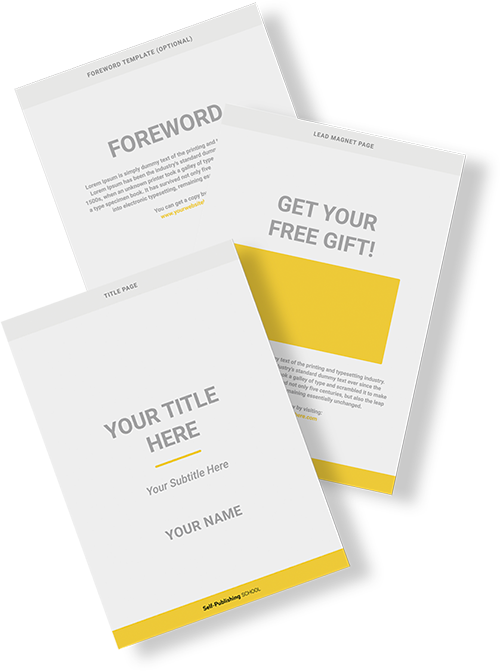
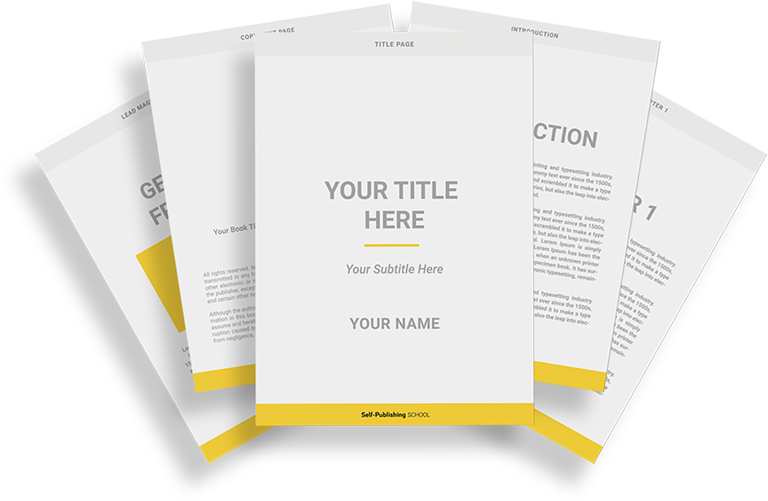
A book template is what it sounds like. Similar to other templates you might find online for invoices, email newsletters, and so on, a book template is a structured, formatted “skeleton” of a book that is customizable. It has all of the parts of the book already in place, like the front matter pages (e.g., copyright page, table of contents, blurb page, dedication), back matter (e.g., author bio, acknowledgments), and other parts depending on the genre and whether it’s fiction or nonfiction.
While you can find a wide range of book templates that work on different platforms, Google Doc templates are designed to work specifically within Google Docs. If you are a writer who already uses Google Docs, then their book templates could be a good fit. Even if you don’t currently use Google Docs, it’s a user-friendly platform, and getting started is simple.
Benefits of using Google Docs book templates
- free and cloud-based software purchase required for most templates
- seamless sharing and collaboration
- auto-save and version history reduce stress
- easy integration with Google Drive, fonts, and images
Where to find Google Docs book templates
Currently, there aren’t a ton of Google Docs book templates available online, but you can find them. You can start with a browser search for “Google Docs Book Templates” to see what comes up. If you’re not sure if the site is safe, a quick place to check is safeweb.norton.com. Once you know the site is secure, browse the templates to see which one is best for your book.
Here are some sites to consider for Google Docs templates:
- Template.net
https://www.template.net/book/google-docs
Offers a variety of professionally designed book templates—novels, poetry collections, children’s books—that you can open and edit directly in Google Docs. Some templates require a free account; premium designs unlock with a subscription. This site offered the most book templates compared to the other platforms listed below. - Spreadsheet Point
https://spreadsheetpoint.com/book-template-google-docs/
Provides five distinct Google Docs book templates: novel, children’s book, story, outline, and recipe book. Includes step-by-step setup instructions to get your cover page, table of contents, and chapters formatted in minutes. - The GooDocs
https://thegoodocs.com/freebies/book-templates/
Hosts 200+ clean, genre-specific Google Docs templates—from minimalist novels to illustrated children’s stories. All templates are free and updated regularly for compatibility with the latest Docs features. - Docs & Slides
https://docsandslides.com/googledocs/book/
Features over 50 free Google Docs book templates, including picture books, manuscripts, and jackets. Download straight to your Google Drive and begin customizing layouts, fonts, and chapter styles.
Note: Although many book templates Google Docs are free, it’s still important to read the Terms of Service. You’ll want to make sure you understand the template’s permissions, including information on embedded fonts or images. You’ll also want to keep any Google Docs add-ons up-to-date to avoid conflicts. The Google Docs platform has a template gallery, but at the writing of this article, it didn’t have book templates available.
If you don’t mind converting from Word to Google Docs, a whole world of template options opens up. Here are some sites that offer Word book templates that can easily be converted to Google Docs.
- Microsoft Office Templates (Word → Google Docs)
Hundreds of free “book” and booklet templates. Download the .docx, upload to Drive, then open with Google Docs to convert.
https://templates.office.com/ - TemplateLab (Word → Google Docs)
Book-style layouts for storybooks, photo books, recipe books
https://templatelab.com/book-report-template/ - Vertex42 (Word → Google Docs)
Author-focused templates like novel drafts and children’s storybook layouts
https://www.vertex42.com/WordTemplates/book-report-template.html - Lucidpress (Cloud-based with Drive sync)
Professionally designed booklet and mini-book templates that live in Lucidpress but save/export to Google Drive
https://www.lucidpress.com/pages/templates/booklet - Reedsy Free Book Formatting Files (Word → Google Docs)
Industry-standard manuscript templates (.doc/.docx) for fiction and nonfiction. Upload to Drive, convert to Docs, then apply your own styles.
https://reedsy.com/write-a-book
Creative Market (Premium) is another great resource for designer-quality Google Docs book templates. https://creativemarket.com/templates/google-docs
Using third-party templates
There are a few ways to drop book templates into Google Docs. Some templates require you to make a copy, while others are available for download. Try any of these methods to get the template to open in Google Docs.
Method 1: Manual “Make a copy”
- Confirm View Access
Ensure the template’s owner has set sharing to Anyone with the link can view. - Open the Template Link
Paste the URL into your browser. It will open in view-only mode. - Make a Copy
In the menu, click File > Make a copy. - Rename & Organize
Choose a name, select the destination folder in your Drive, and click OK.
Method 2: Force a copy via URL
- Grab the Sharing URL
It looks like:https://docs.google.com/document/d/TEMPLATE_ID/edit?usp=sharing - Modify to a Copy Link
Replace everything from/editonward with/copy.
Example:https://docs.google.com/document/d/TEMPLATE_ID/copy - Open the Modified Link
Paste it into your browser. A “Make a copy” dialog appears automatically. - Save to Your Drive
Choose folder, update the title if desired, and click OK.
Method 3: Upload and convert a downloadable template
- Download the Template File
Get the .docx from the third-party site (e.g., a zipped download). - Upload to Google Drive
In Drive, click New > File upload, then select the .docx file. - Open with Google Docs
Right-click the uploaded file, choose Open with > Google Docs. It converts instantly. - Save Your Converted Copy
The Doc will auto-save in Drive. Rename it and move it into your project folder.
Tips:
- Verify Images & Fonts
Some third-party templates use custom fonts or embedded graphics—ensure they load or replace them. - Set Up Page Breaks
Go to Insert > Break > Section break (next page) at each chapter end to preserve formatting. - Add to Your Personal Template Folder
Create a “My Book Templates” folder in Drive for future quick access.
How to use Google Docs book templates
- Customize the cover page
- Scroll to the cover section:
- Click into the title, subtitle, and author placeholders to replace text.
- To swap out the cover image, right-click the existing image, choose Replace image, and upload or select from Drive.
- Scroll to the cover section:
- Update and format the Table of Contents
- Ensure your chapter titles use Heading styles:
- Highlight each chapter title and select Heading 1 from the style dropdown in the toolbar.
- Click the refresh icon in the table of contents to regenerate page numbers.
- Ensure your chapter titles use Heading styles:
- Insert section breaks for chapters
- At the end of each chapter, place your cursor and go to Insert > Break > Section break (next page).
- This makes every chapter start on its own page and preserves formatting across sections.
- Adjust headers, footers, and page numbers
- Double-click the header or footer area. Then:
- Go to Insert > Page numbers and choose your preferred layout.
- For custom headers (e.g., book title or chapter name), type directly into the header and toggle Different first page under Options if you want a blank first header.
- Fine-tune body text and styles
- Select body text and use the toolbar to adjust font family, size, line spacing, and alignment.
- Use the ruler at the top to tweak margins and indents so your text block feels balanced.
- Proofread, collaborate, and export
- Share your draft with beta readers via Share (set permissions to Viewer or Commenter).
- When ready, go to File > Download and pick PDF or EPUB for distribution.
- You can also print directly through File > Print.
Takeaways
Using a Google Docs book template for book formatting is a budget-friendly option that’s user-friendly and requires minimal setup. You won’t get the benefits of software specifically designed for book formatting like Atticus, Vellum, Adobe InDesign, or Affinity Designer, but if you don’t need the extra bells and whistles, then a template could be the perfect fit for you.
Are you new to self-publishing and looking for one-on-one support? Our team of professionals can walk you through the self-publishing process from writing your book through publication and marketing. Book a call today to get started.
Book Outline Generator
Choose your Fiction or Nonfiction book type below to get your free chapter by chapter outline!
Book Outline Generator
Enter your details below and get your pre-formatted outline in your inbox and start writing today!
CONGRATULATIONS
Thanks for submitting! Check your email for your book outline template.
In the meantime, check out our Book Outline Challenge.
Sources
1 Berghammer, Gabriele, and Anders Holmqvist. 2012. “Pleasing the Reader by Pleasing the eye—Part 1: the Role of Format and Design in Readability.” European Medical Writers Association 21 (3): 209. https://journal.emwa.org/writing-matters/pleasing-the-reader-by-pleasing-the-eye-part-1-the-role-of-format-and-design-in-readability/article/2115/2047480612z2e00000000045.pdf.